
Displays
Displays are a grouping of graphical symbols of different natures that together pictorially represent a given process supervised by the system.
Screenshot
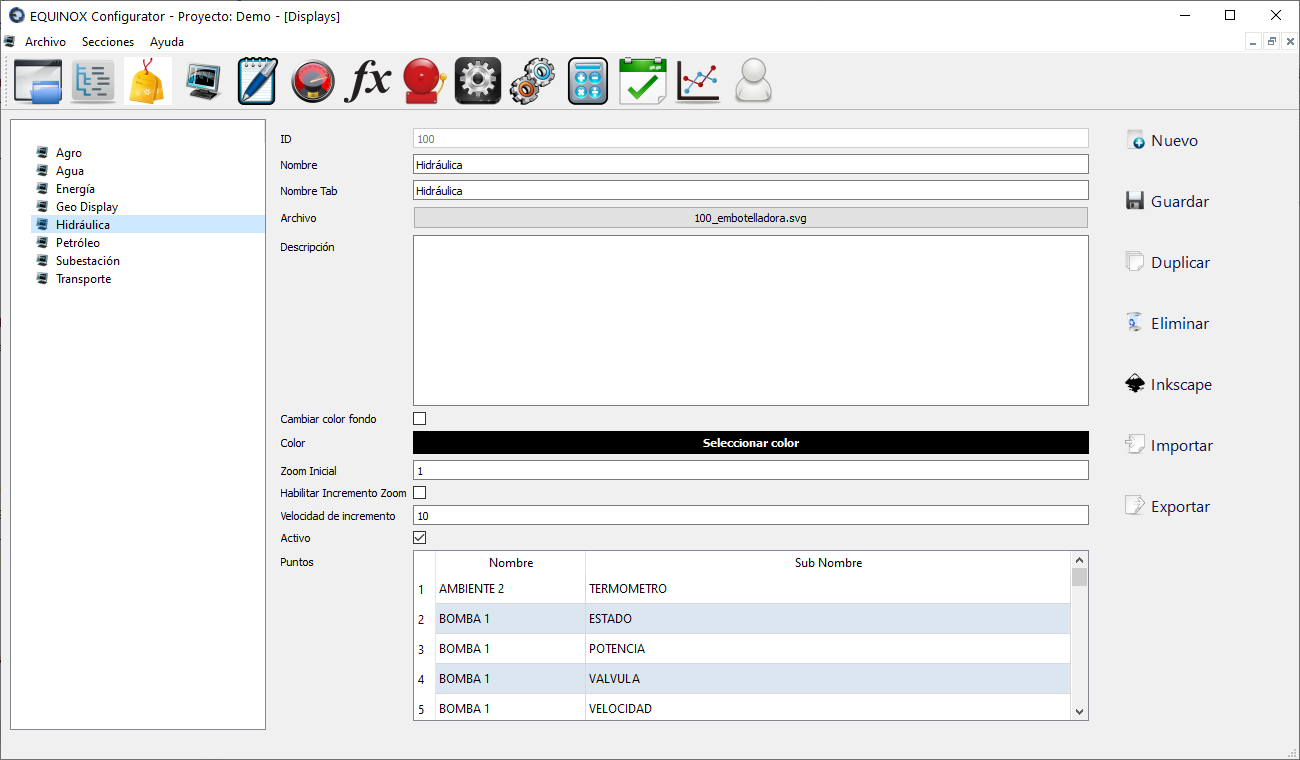
Definition
- Click New in the upper right area of the window
- Fill in the following fields
Field Description Name Name of the Display as it will appear in the list of Displays in the Points section Tab Name Name of the display’s tab within EQUINOX Web, in the browser File Graphic file (SVG) assigned to this display; to change it, click the button next to this field and select the SVG file you want to use Description Field for user reference Change background color Check to change the display’s background color; otherwise the background will be transparent Color Allows you to choose the display’s background color Zoom Check to enable zoom using the mouse wheel Initial zoom Initial zoom value with which the display will be loaded (default: 1) Zoom increment Zoom speed Active Check to activate the Display. If not activated, it will remain hidden. - In Points Table you can view the list of points for this display. This list cannot be edited from here since it must be done in the Points section
- Click Save
- Click Save
Other buttons
| Button | Description |
|---|---|
| Inkscape | Opens the display editor program (Inkscape) distributed with the system. The graphic file of the current display is automatically loaded into this program for editing |
| Duplicate | Allows you to make an exact replica of the selected display, which makes it easier to create displays that are very similar to existing ones. A new display will be defined with the same points as the original, and a copy of the graphic file will be made. Afterwards, if desired, you should assign the users who will have access to the new display in the Users section |
| Import | Allows you to add a previously exported display to the configuration. You must select the .eqdis extension file previously created during the export process |
| Export | Allows you to save the data of the selected display to an external file with the .eqdis extension, which can later be imported into a different configuration. It includes the defined points as well as the display’s graphic file. Clicking the button opens a new window where you can selectively choose the columns of the Points section to be exported |